The Castra manual.
Find your way around.
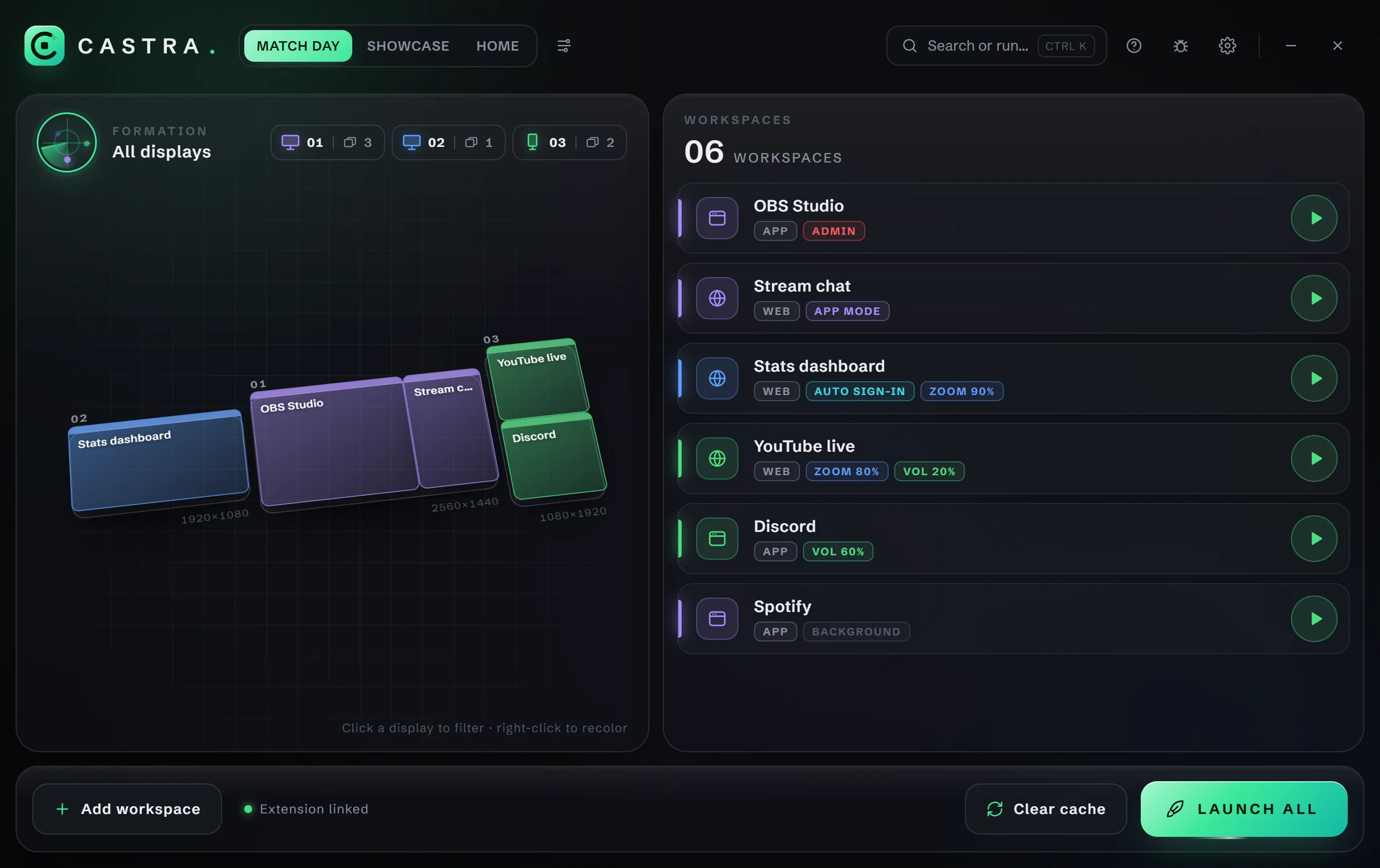
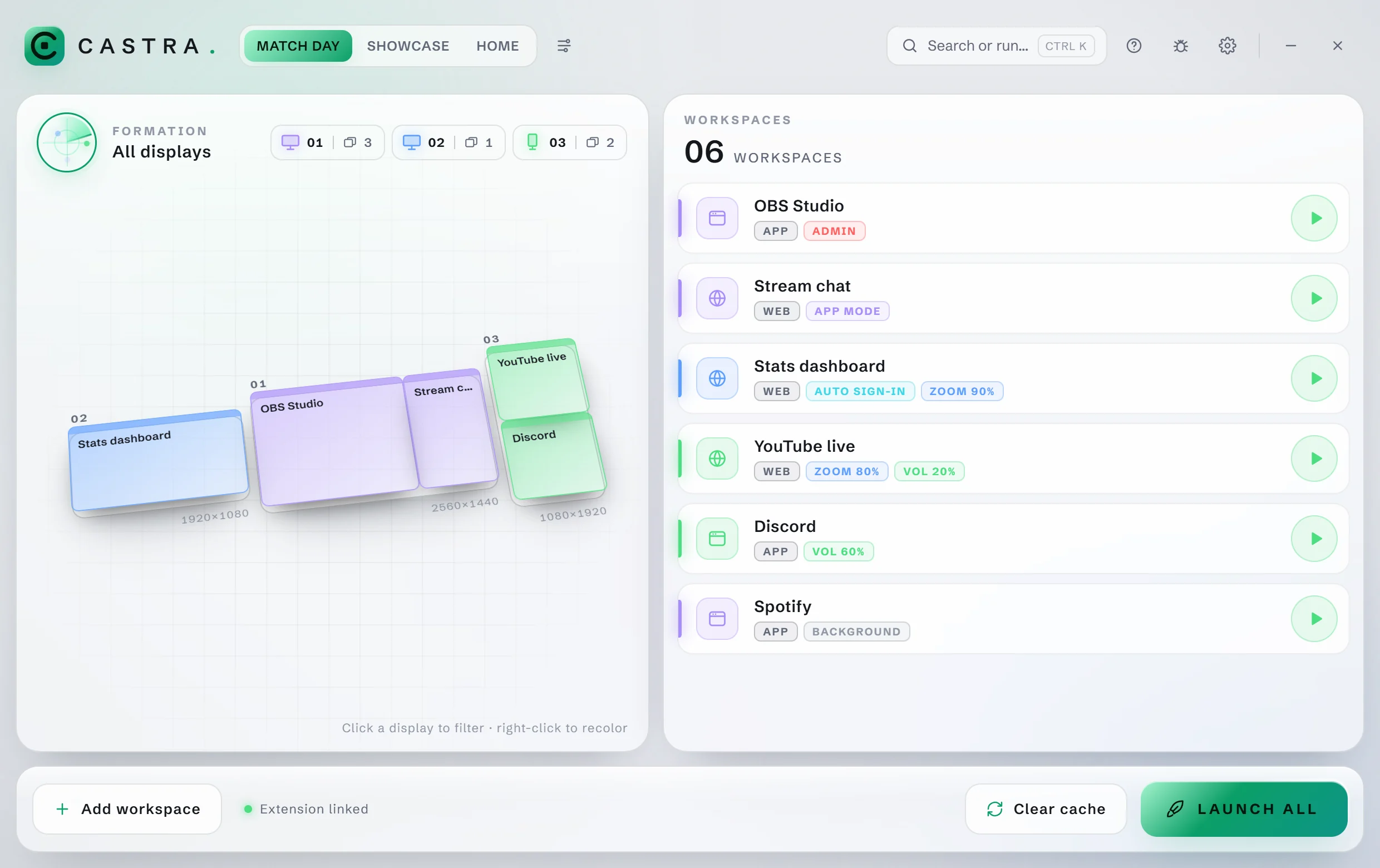
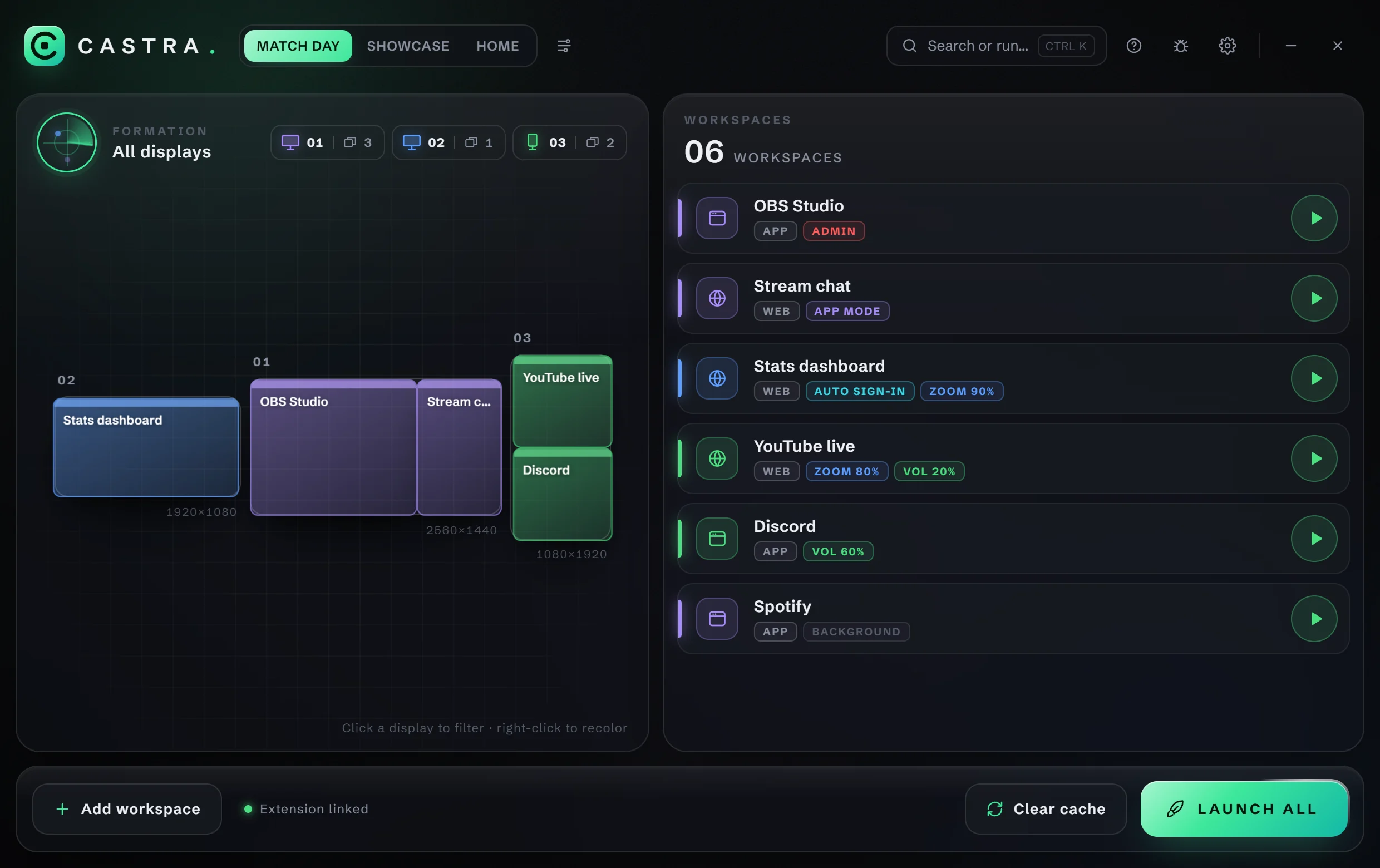
Point atTap anything in the screenshot.
Up and running in three steps.
-
Add
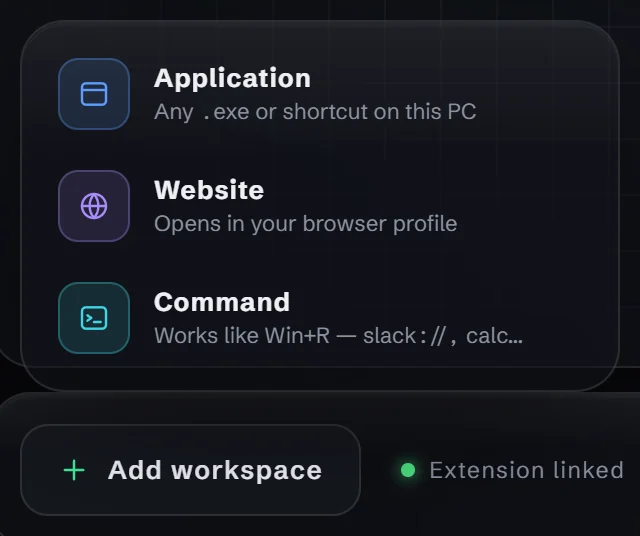
Pick an app, a website or a command.
-
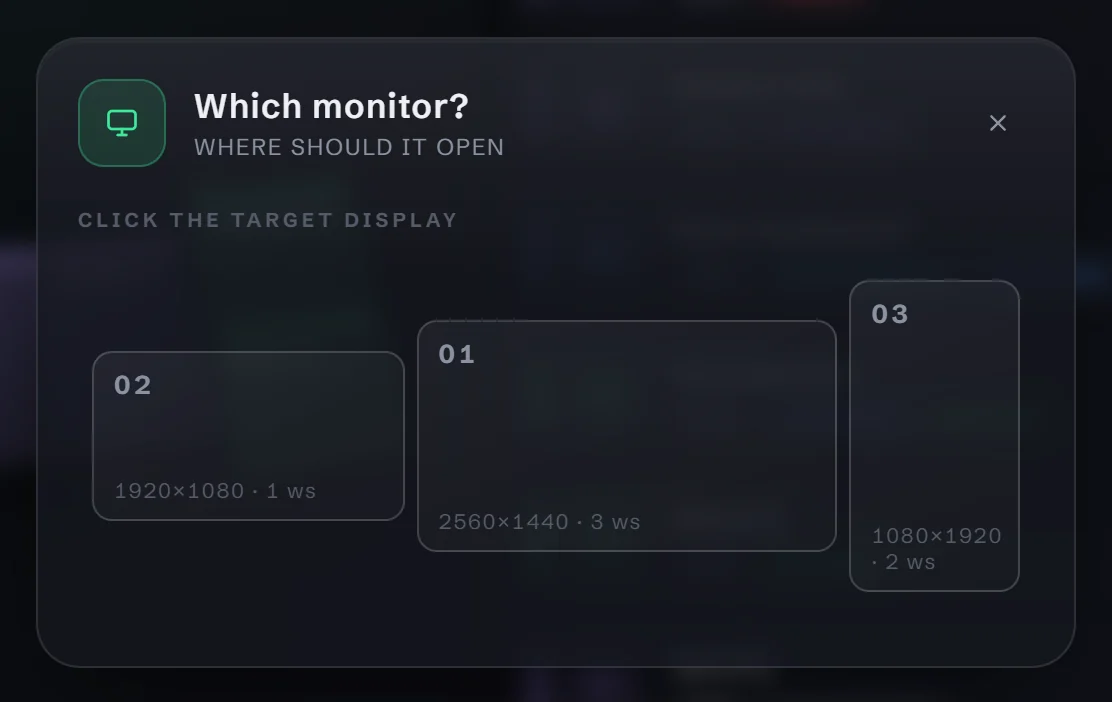
Place
Choose the display. Fine-tune the spot whenever you like.
-
Launch
Hit Launch all. Everything opens and lands in place.
Add a workspace.
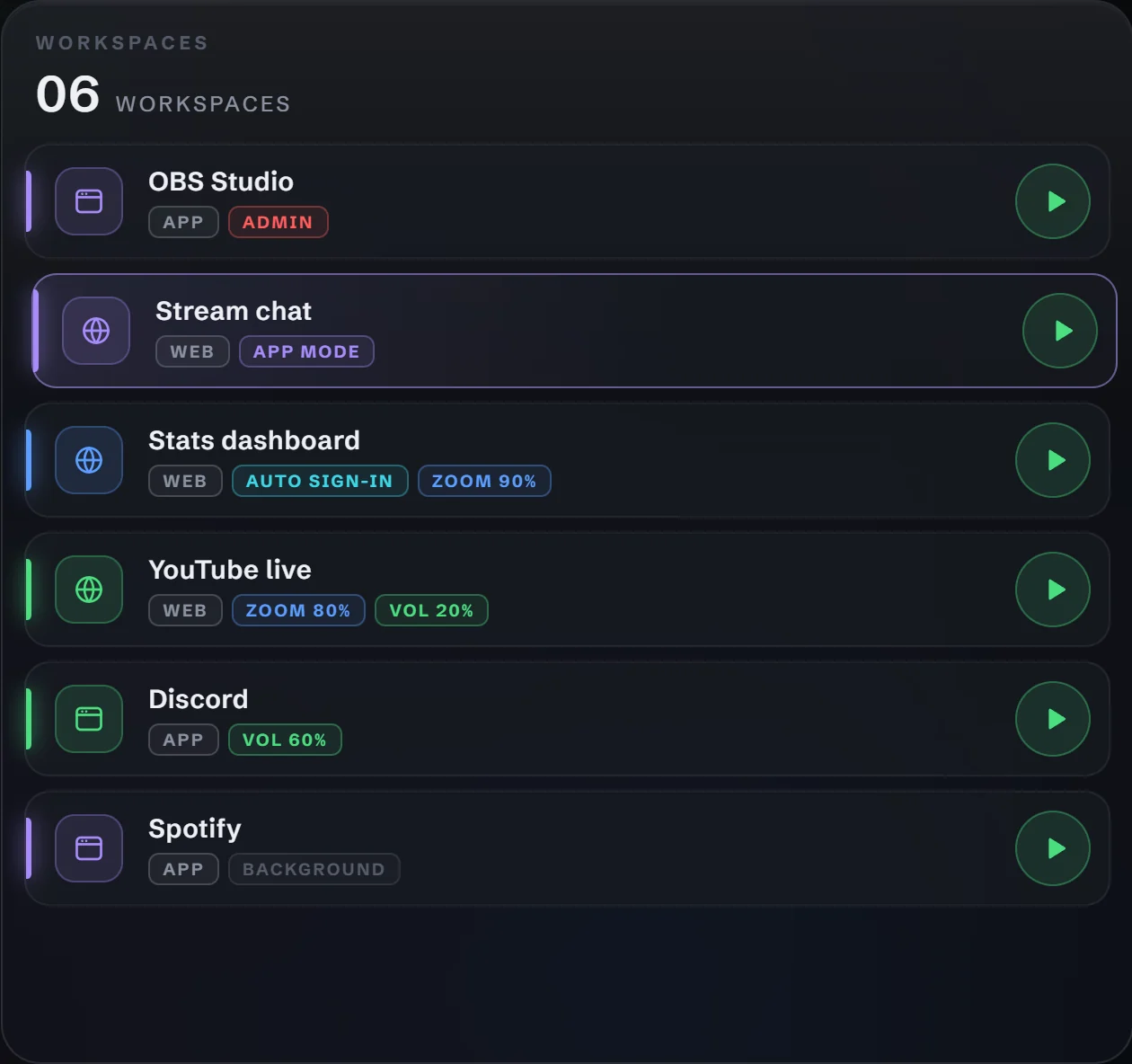
A workspace is one window Castra opens for you.
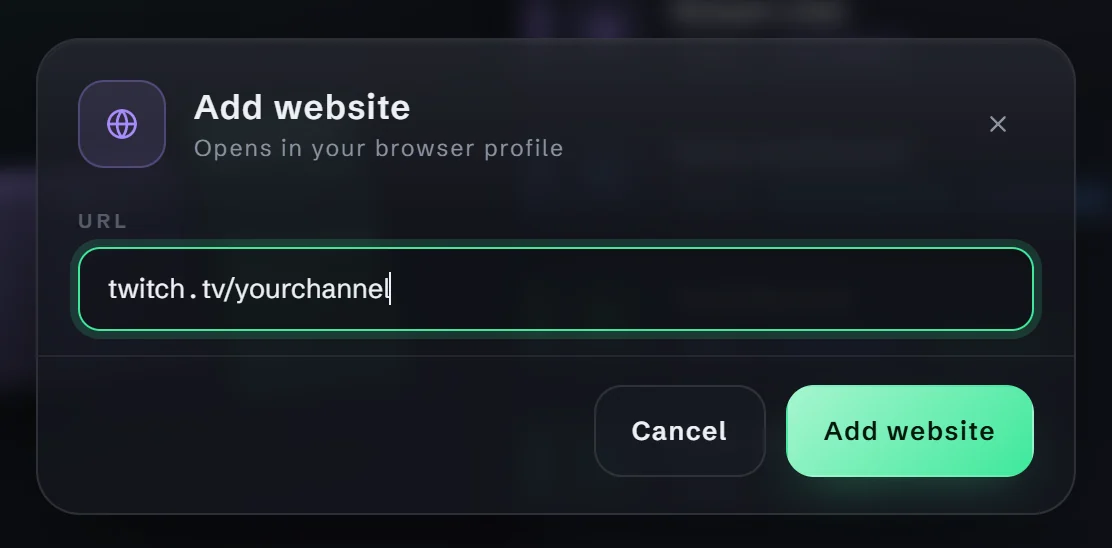
- ApplicationAny .exe or shortcut
- WebsiteOpens in your browser
- CommandLike Win+R:
slack://,calc
Exactly where you want it.
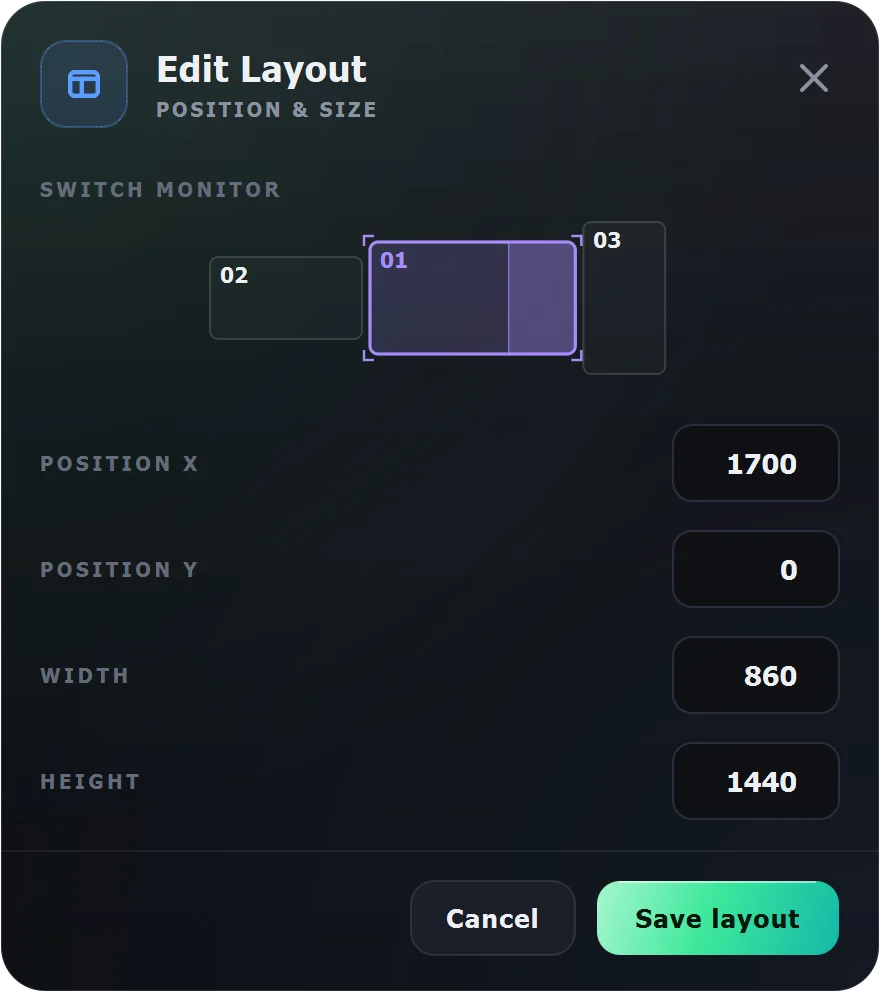
Click the layout icon on a workspace.
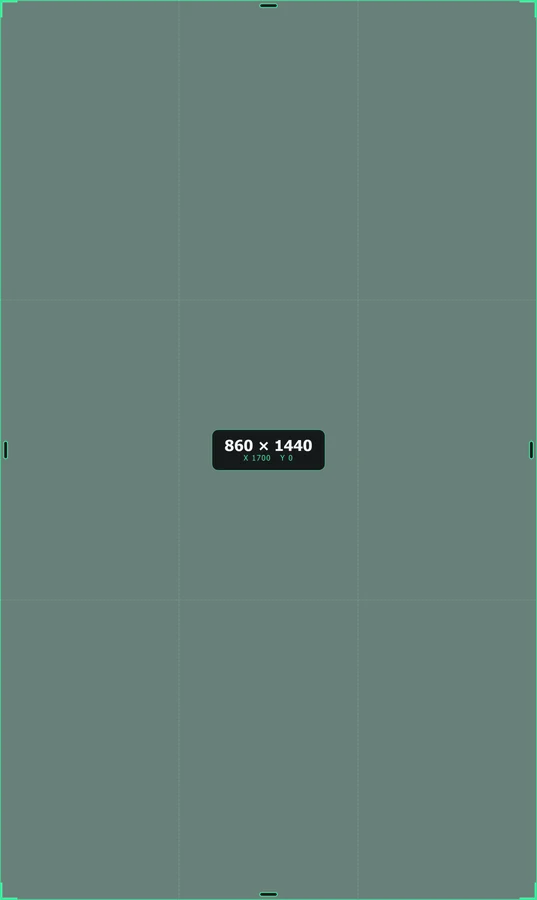
- Drag or resize the frame right on your display.
- Or type it — position and size to the pixel.
- Switch display at the top of the dialog.

Make each one behave.
Click — or double-click a workspace.
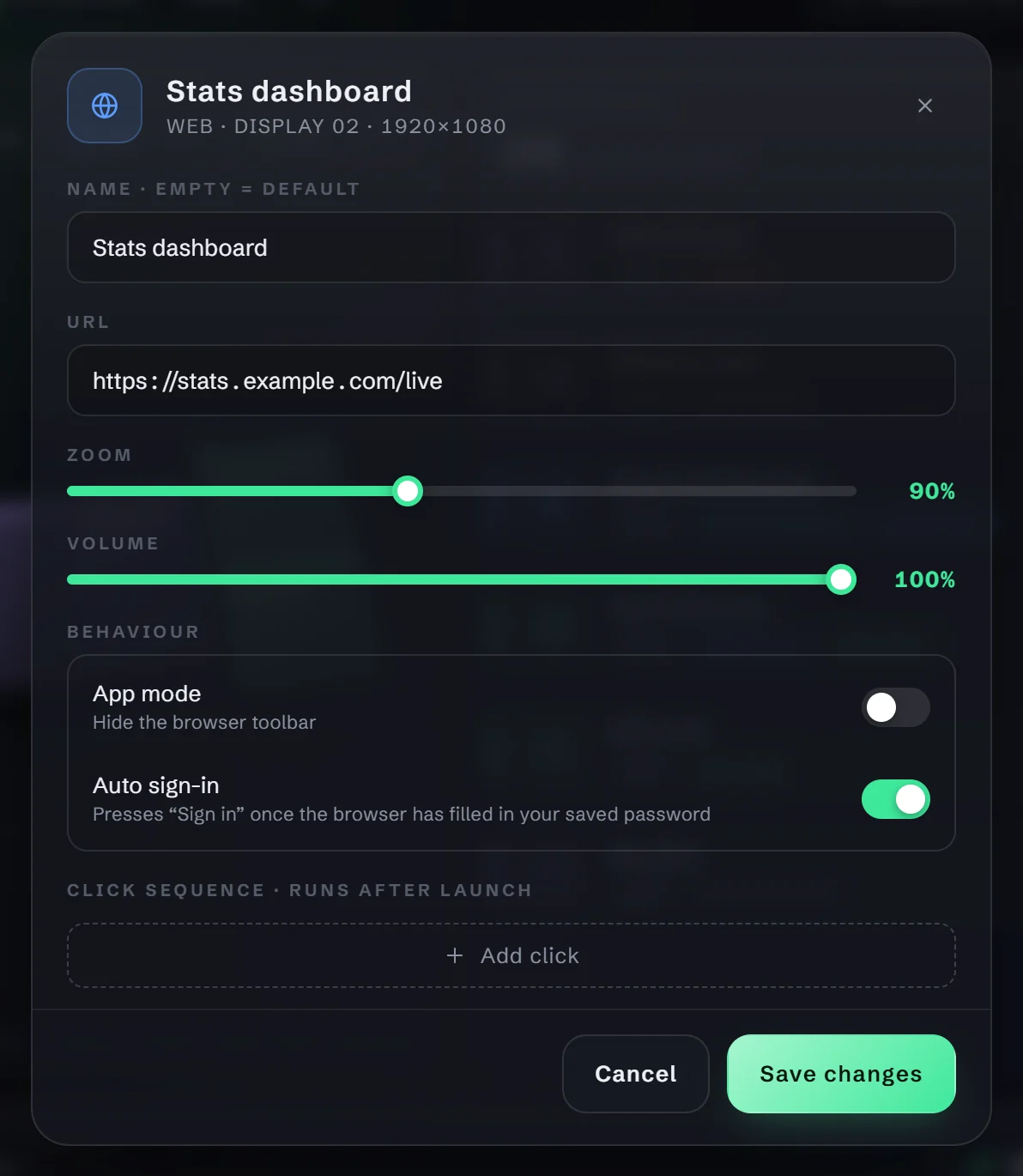
- ZoomEach website at its own zoom.
- VolumeQuieter or louder, per workspace.
- App modeA website without the browser toolbar.
- Auto sign-inPresses “Sign in” once your browser has filled in the saved password.
- Run as administratorOne UAC prompt when you switch it on, silent after that.
- Background onlyStarts the app, places no window.
- Click sequenceClicks for you after the window opens — a login, a tab, a button.
- NameLeave it empty — Castra names it from the app or address.
One by one, each in its place.
opens one workspace. Launch all opens the whole profile — the ring shows what's happening.
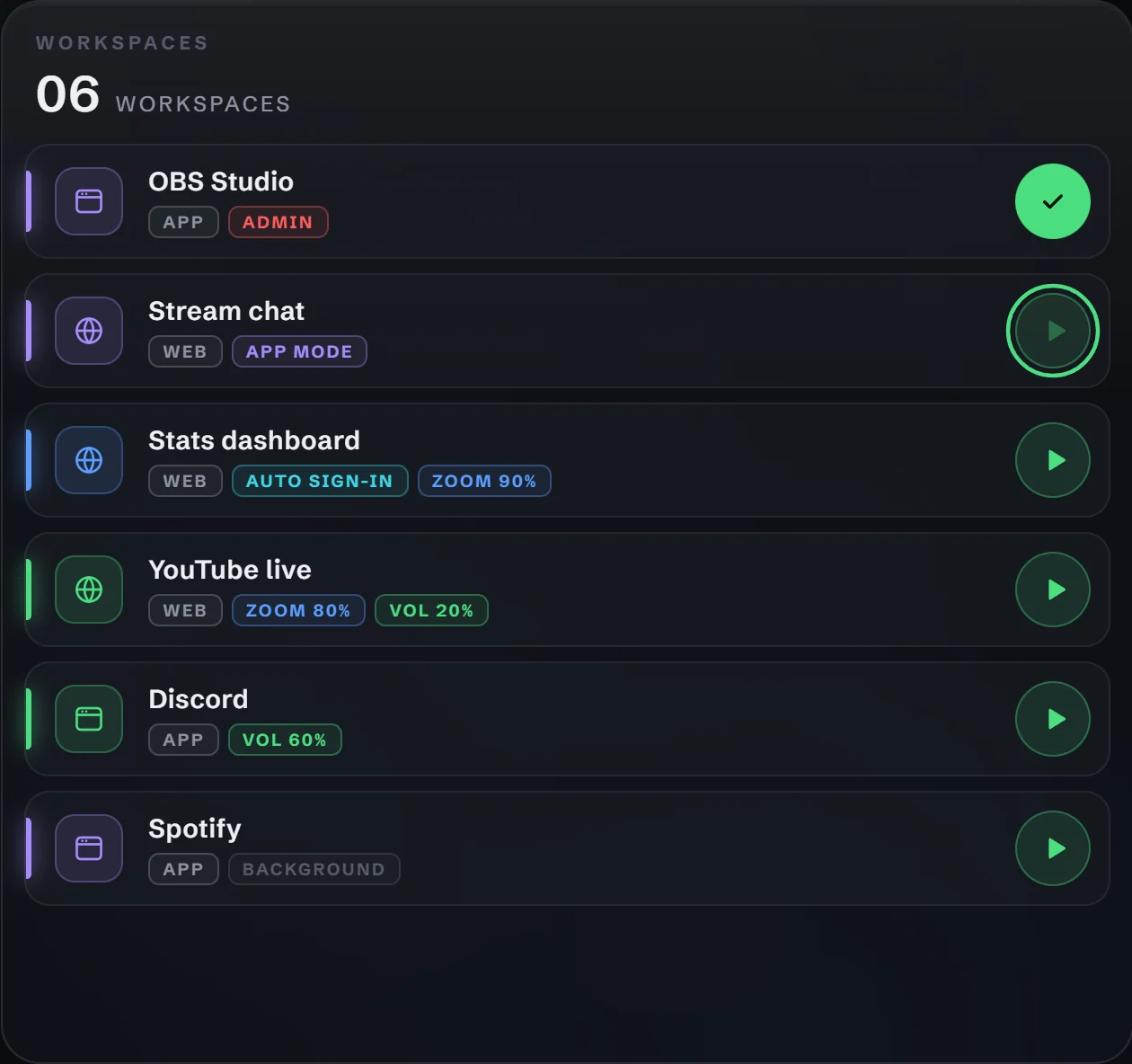
- Already open?Start another copy, move the open window into place, or skip it — your call in Settings.
- Display unplugged?Its workspaces get a Display offline tag and open on your main display.
- Clear cacheHard-refreshes stuck dashboard windows; each one stays covered until its page has reloaded.
Different days, different setups.
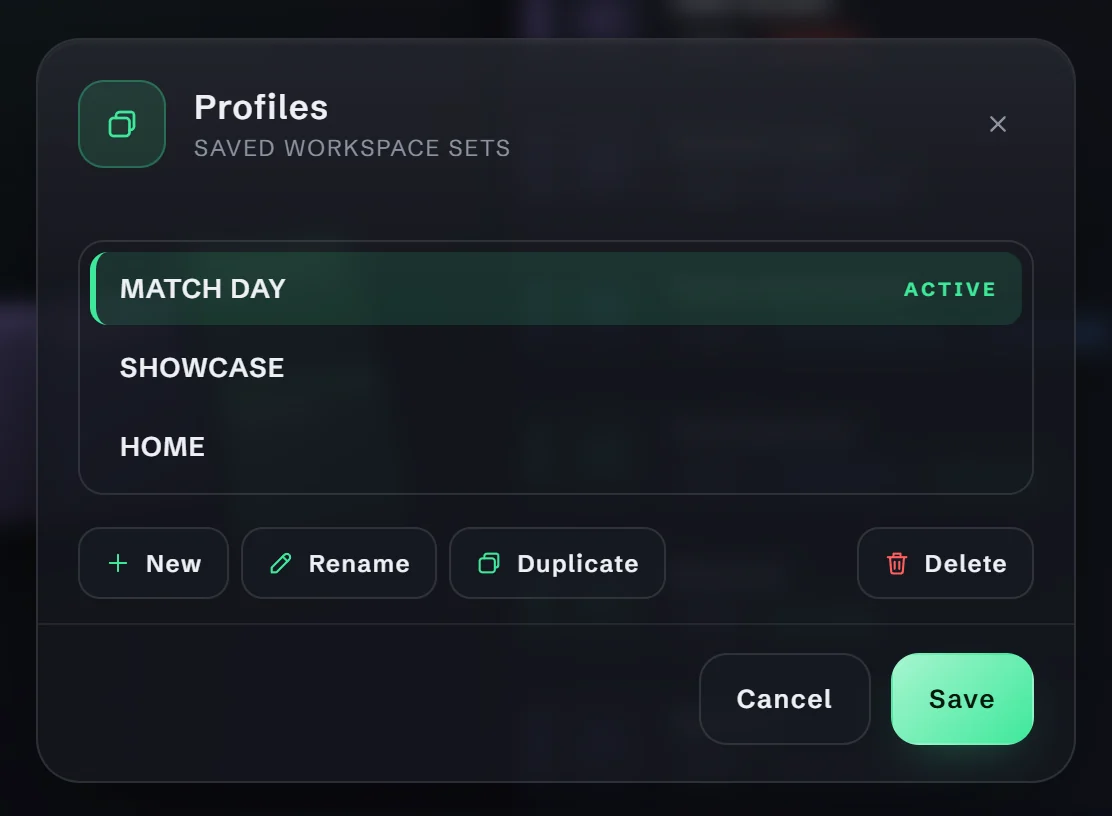
Profiles
One set of workspaces per occasion. Switch with the tabs on top; create, rename, duplicate or delete them with the slider icon next to the tabs.
Displays
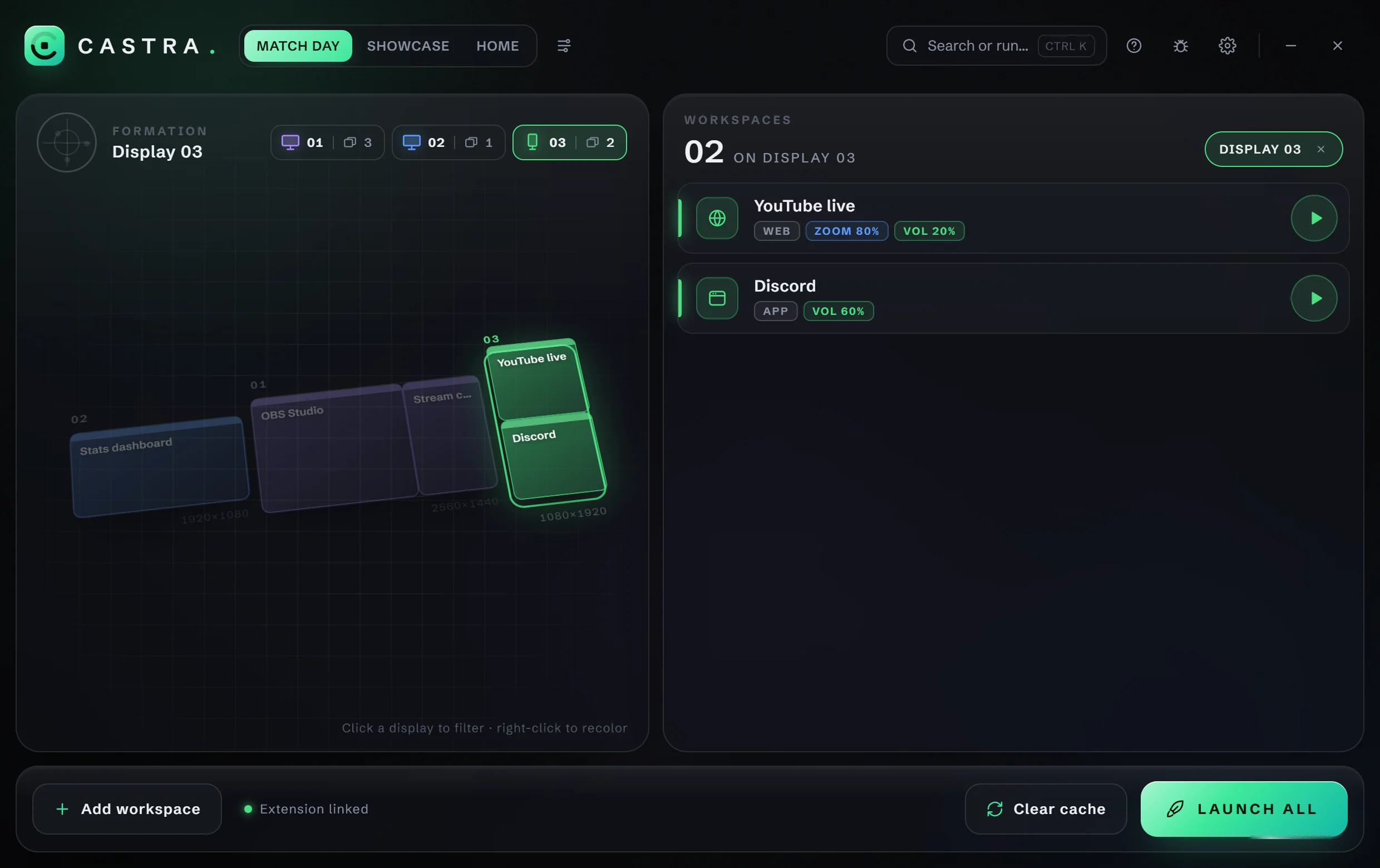
- Click a display or its chip to see only its workspaces. The radar shows all again.
- Right-click a display to change its colour.
- Hover a chip — the real display lights up so you know which is which.
- Plug or unplug a monitor — Castra updates by itself.
The browser, under control.
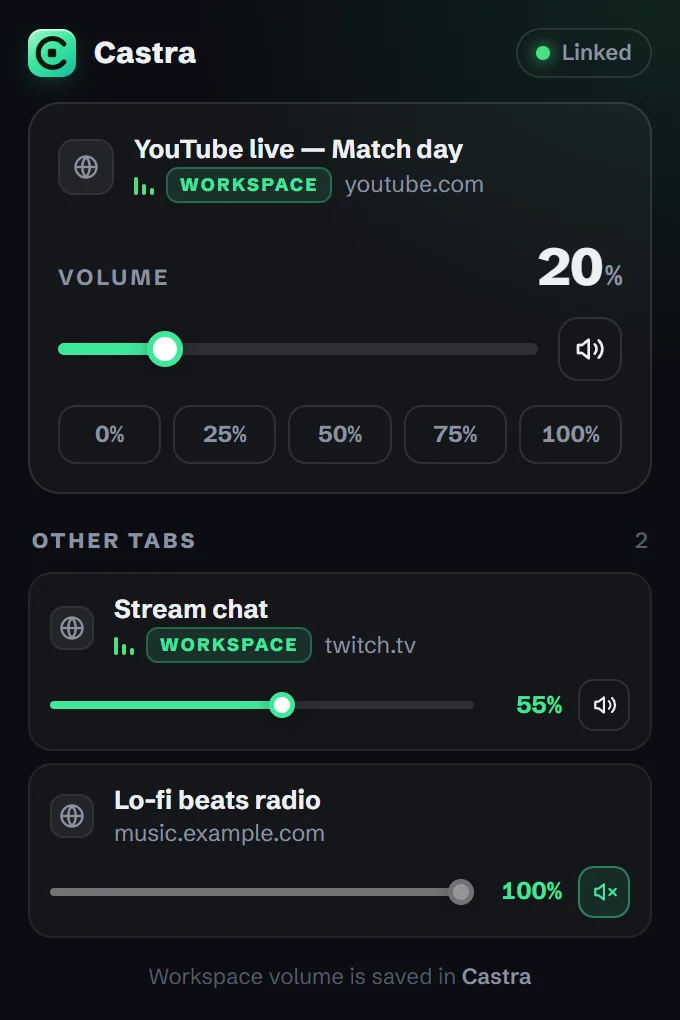
- Volume per tab. Castra's volume multiplies the site's own — YouTube at 50% and Castra at 40% plays at 20%.
- Zoom that sticks, even right after a restart.
- Auto sign-in for the workspaces where you switch it on.
- A mixer in the toolbar for every tab that plays sound.
- Open Castra in the Chrome Web Store and click Add to Chrome.
Chrome Web Store - In Edge, allow extensions from other stores when it asks.
- Pin the Castra icon. Works in Chrome, Edge and Brave.
Set it once, forget it.
The gear icon, top right.
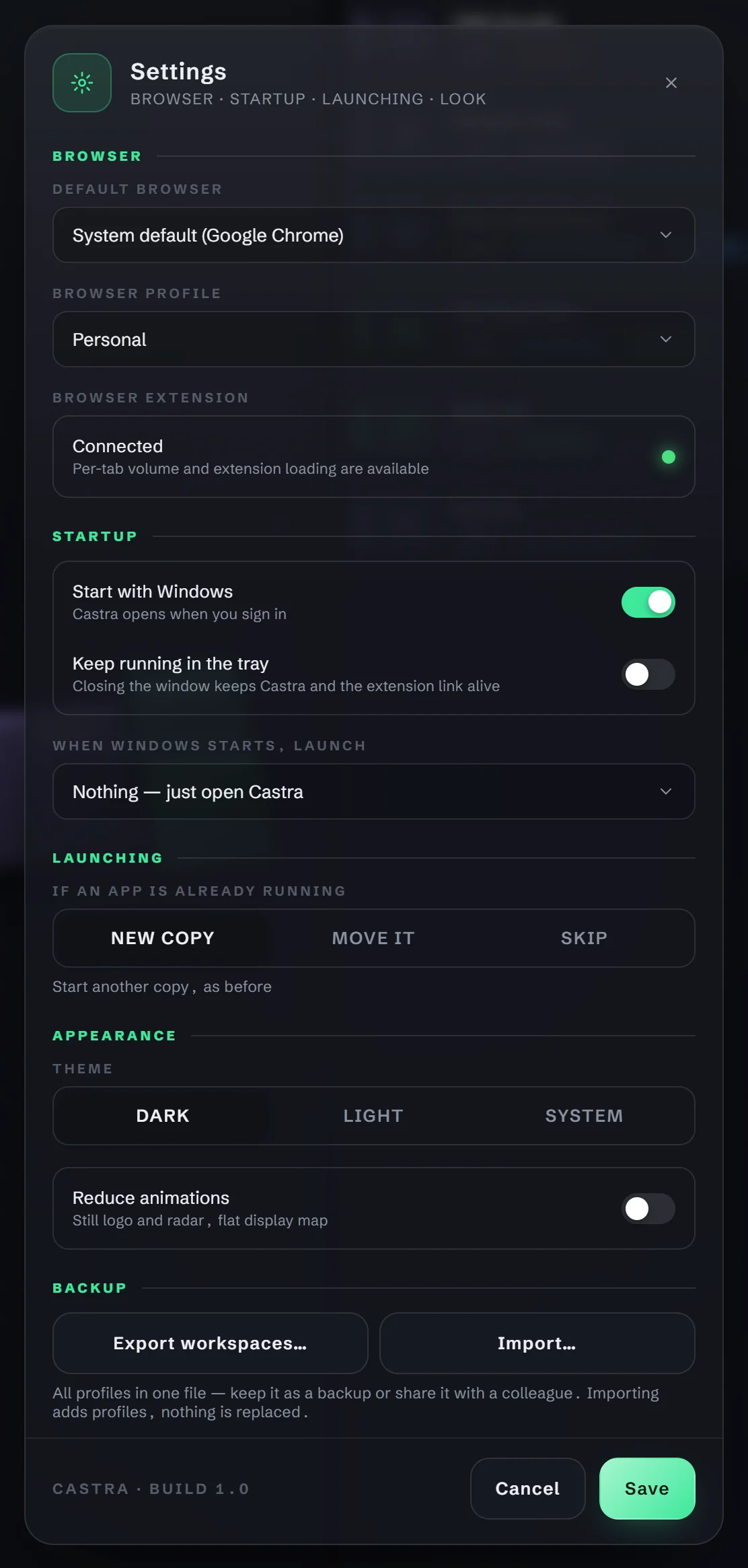
- Start with Windows…and launch a profile right after you sign in.
- Keep running in the trayClosing the window keeps Castra — and volume, zoom, sign-in — working.
- If an app is already runningNew copyMove itSkip
- Export · ImportAll profiles in one file — a backup, or a setup to share with a colleague.
- Reduce animationsStill logo and radar, flat display map.
- Browser & profileWhich browser — and which of its profiles — websites open in.
Faster with the keyboard.
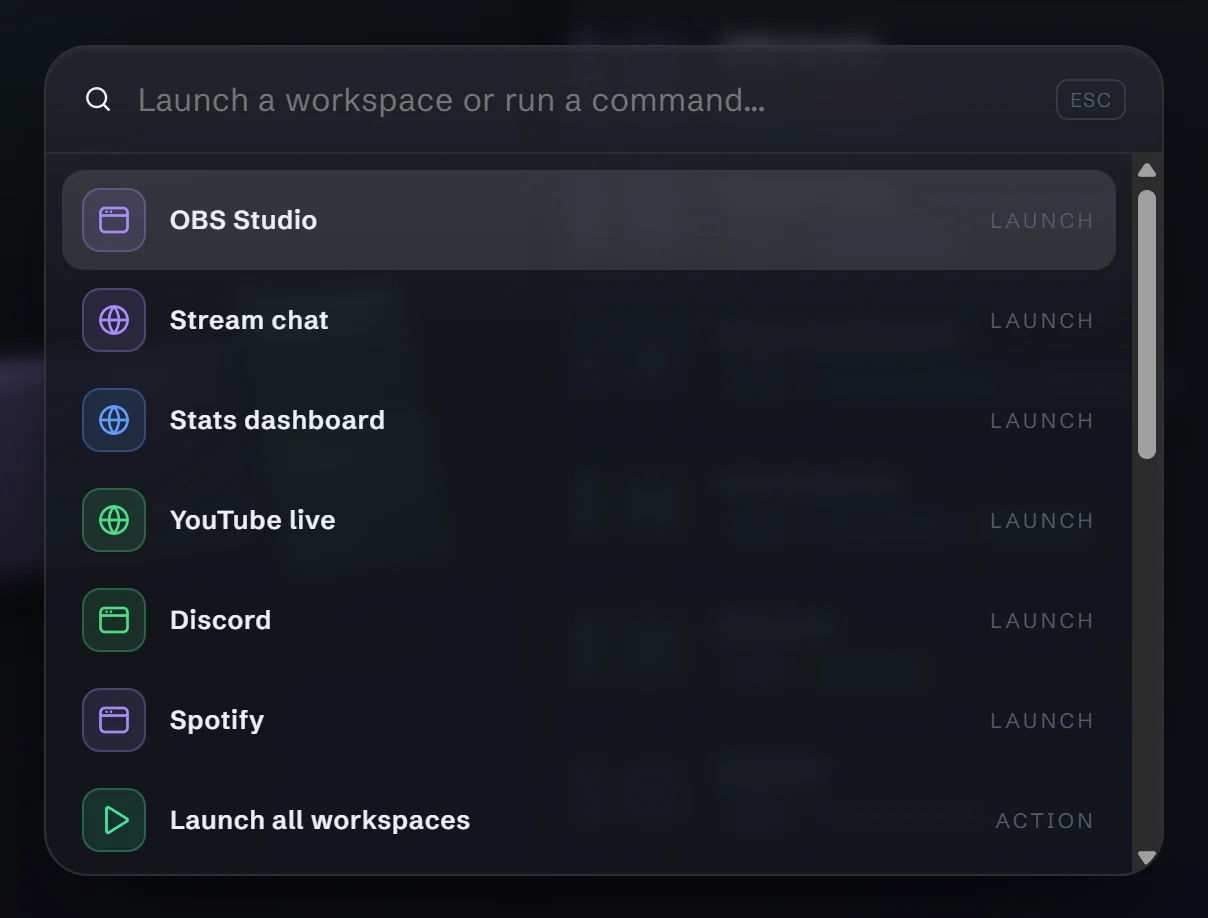
| Ctrl+K | Launch anything or run a command by typing. |
|---|---|
| F1 | Opens this manual. |
| Esc | Closes the open dialog. |
| ↑↓↵ | Pick and run in the search. |
| Drag | Reorder workspaces — that's the launch order too. |
| 2× click | Edit a workspace. |
| Right click | A display: change its colour. |
| Hover | A workspace: its window lights up on the map. |
Something off?
Volume or zoom doesn't change
Install the browser extension, then reload the page. The status at the bottom says Extension linked when it's on.
A window opens in the wrong spot
Click the layout icon on the workspace and place it again — drag the frame or type the position.
An app asks for administrator rights every time
Switch on Run as administrator for it: one UAC prompt now, then it starts silently.
Websites open in the wrong browser profile
Settings → Browser profile.
Auto sign-in didn't press the button
Your browser has to fill in the saved password by itself, and the window has to be visible on screen. It tries once per window — sign in by hand if it didn't work.
Something else
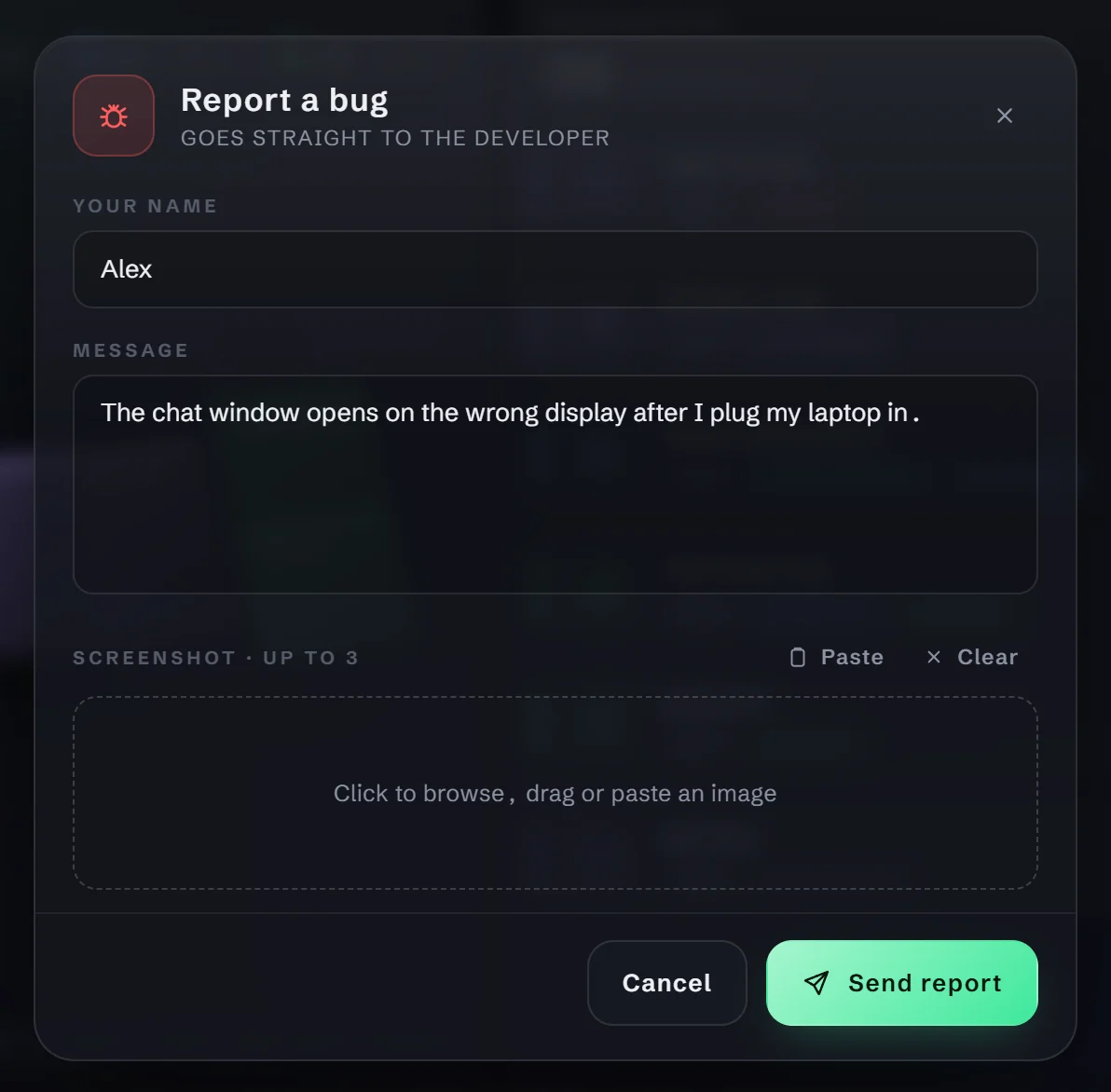
The bug icon, top right: describe it, paste a screenshot, send. It goes straight to the developer.